Benchmark the Model
Use the Benchmark to evaluate your model on a real device hosted by eIQ AI Hub and generate standardized, reproducible metrics. Benchmark results help you determine whether further optimization or hardware tuning is needed before moving to on-device profiling.
Capabilities of the Benchmark
Latency benchmarking: Evaluate model inference time
Accuracy benchmarking: Evaluate model accuracy on specific datasets
Latency benchmarking
The latency benchmarking on eIQ AI Hub measures the average inference latency (ms) and throughput (IPS) for a model.
It runs your model on a specified board, inference framework, and accelerator to measure actual performance.
Before benchmarking inference latency, you must have uploaded at least one model to eIQ AI Hub. Please refer to upload_model for the guide to upload model.
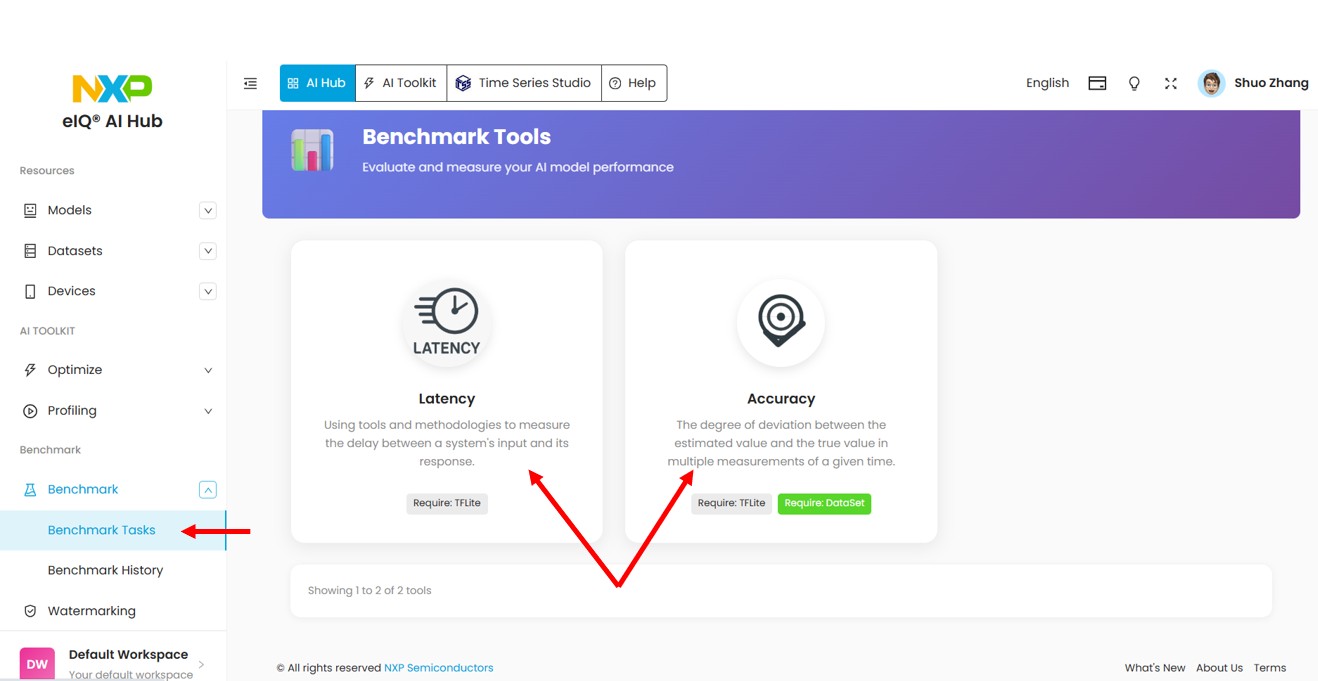
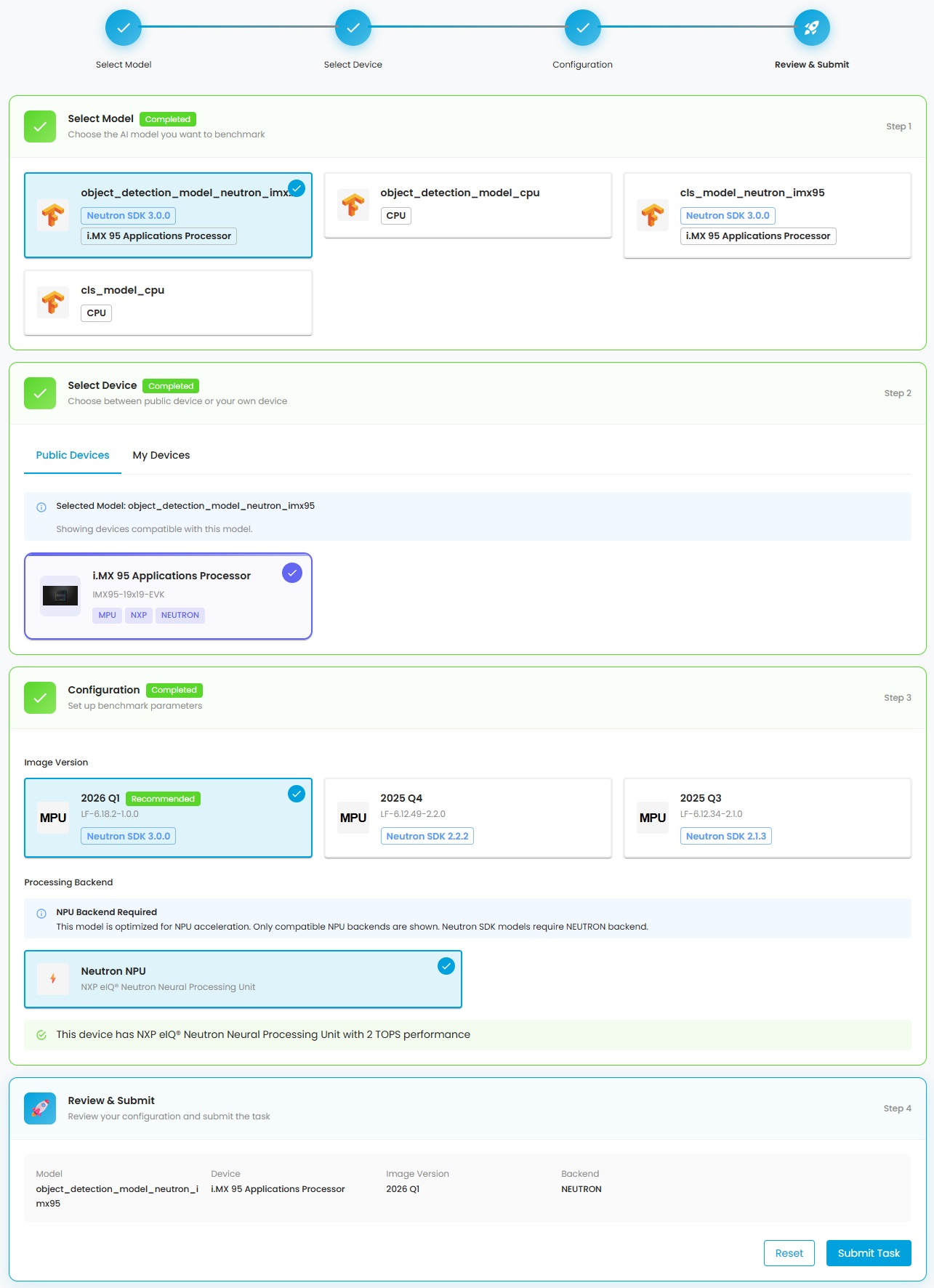
Click the Latency label in Benchmark Tasks to open the latency benchmark page, then select:
the model from your model repository
the device that is compatible to run the model
the BSP version that supports the selected device
the backend (CPU or NPU) you want to use to run the model.
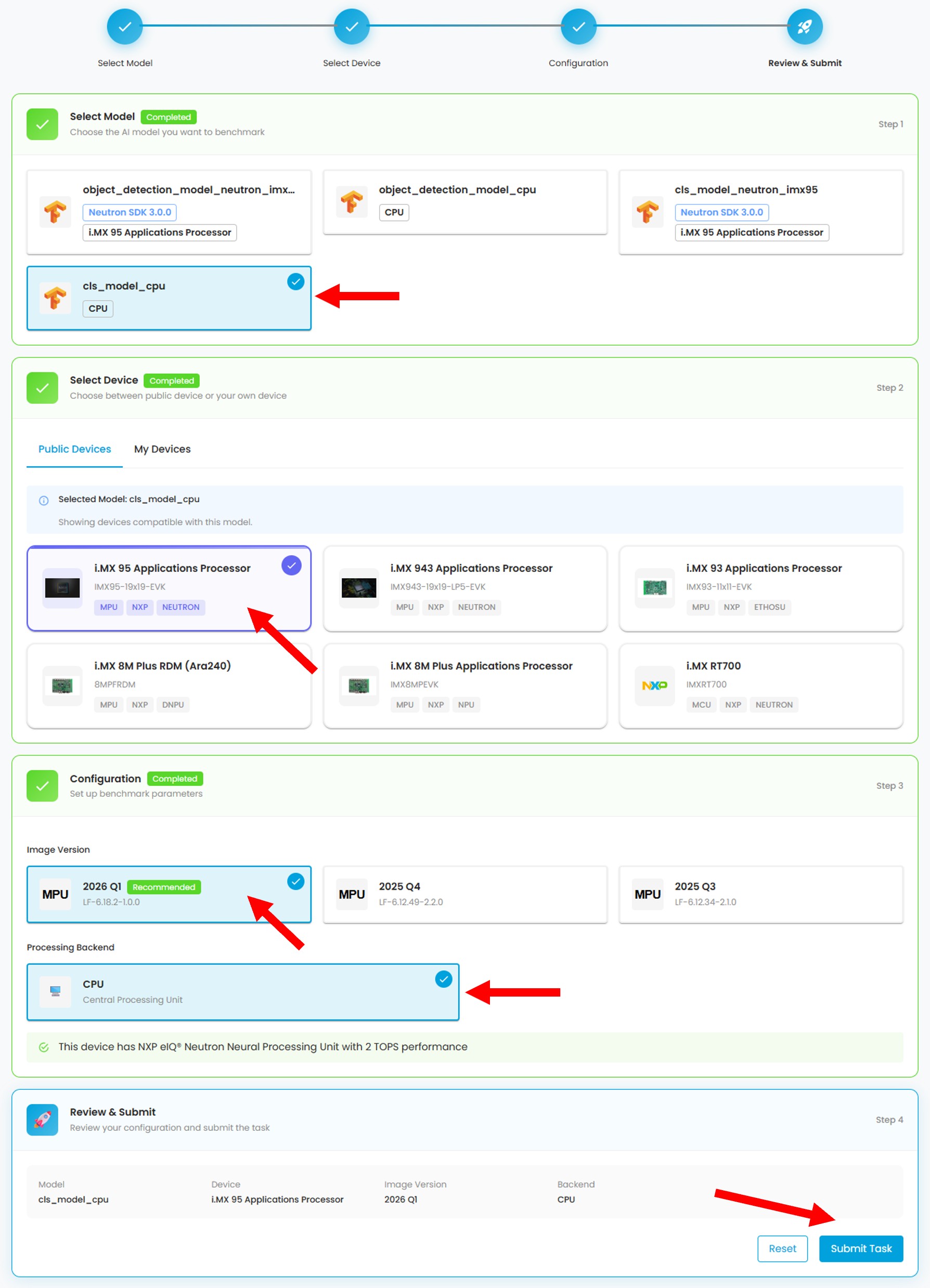
The configuration uses a multi-step wizard. Each step affects the available options in subsequent steps.
In the above picture, a normal TFLite model and i.MX95 device are chosen. Only CPU backend is available because the Neutron NPU on i.MX95 cannot run normal TFLite models. You must convert the model to Neutron graph first. Please refer to optimize for how to convert a model to Neutron graph.
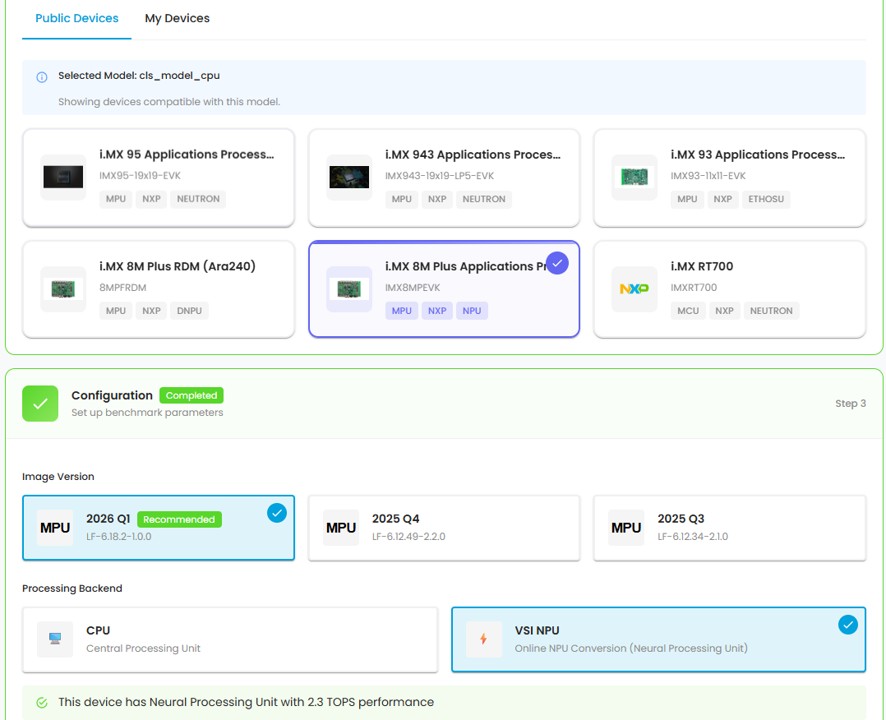
However, if i.MX8MP is chosen, as shown in the below picture, you can see two available backends: CPU and VSI NPU. The VSI NPU can convert normal TFLite models at runtime.
If a converted model is selected, only the applicable device is shown.
In the picture below, a Neutron model converted by Neutron SDK 3.0.0 for i.MX95 is selected. Only i.MX95 appears in the device section. The BSP version that includes Neutron SDK 3.0.0 is selected automatically. You can choose other BSP versions, but there might be compatibility issues at runtime.
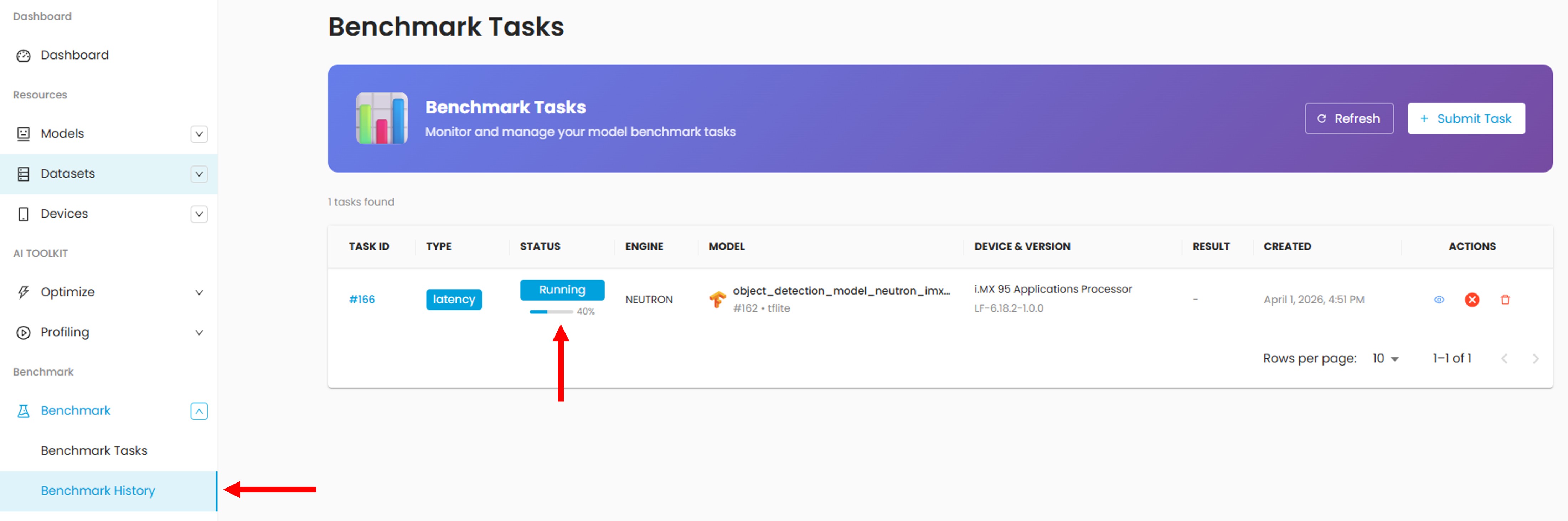
Once you submit the task, it will be sent to the task queue for execution. You will be directed to the Task List to see the status and progress of tasks.
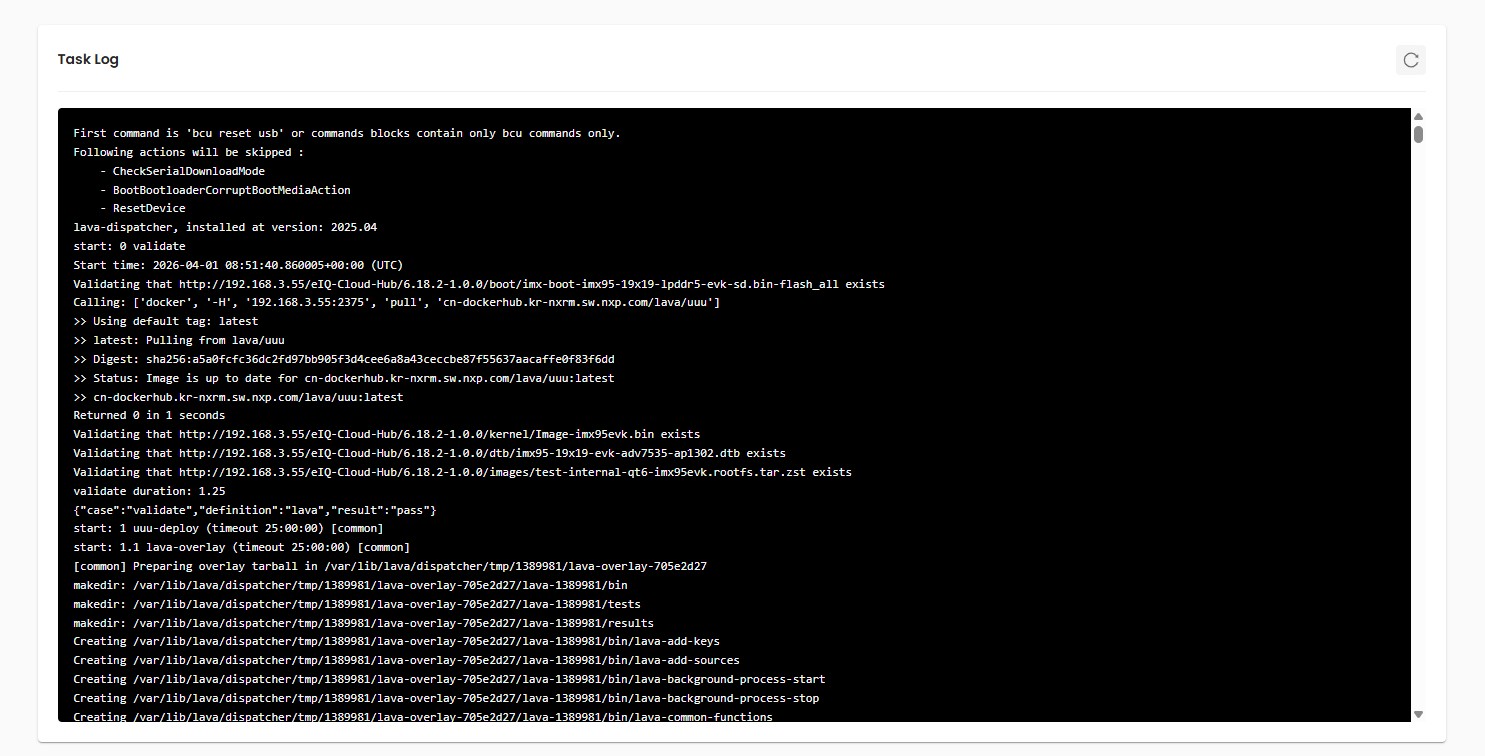
During the task execution, you can click on the task to see the benchmarking log in the Task Detail page.
After the task completes, the task status becomes Completed. You can see the performance results in Task List and Task Detail pages.

Accuracy benchmarking
Accuracy benchmarking evaluates your model’s performance by comparing its predictions against ground truth labels on a real device.
It feeds test images to your model, parses the output, and calculates accuracy metrics. The supported tasks and their metrics are:
Classification Accuracy
Top-1 Accuracy
Top-5 Accuracy
Object Detection Accuracy
mAP 50
mAP 50-95
Mandatory model properties for Accuracy Benchmark
Some model properties are mandatory for accuracy benchmarking, but optional when uploading a model. These properties are not used by other features like model optimization and latency benchmarking.
The required properties are:
Task Type
Architecture
Have Background Class
Label file
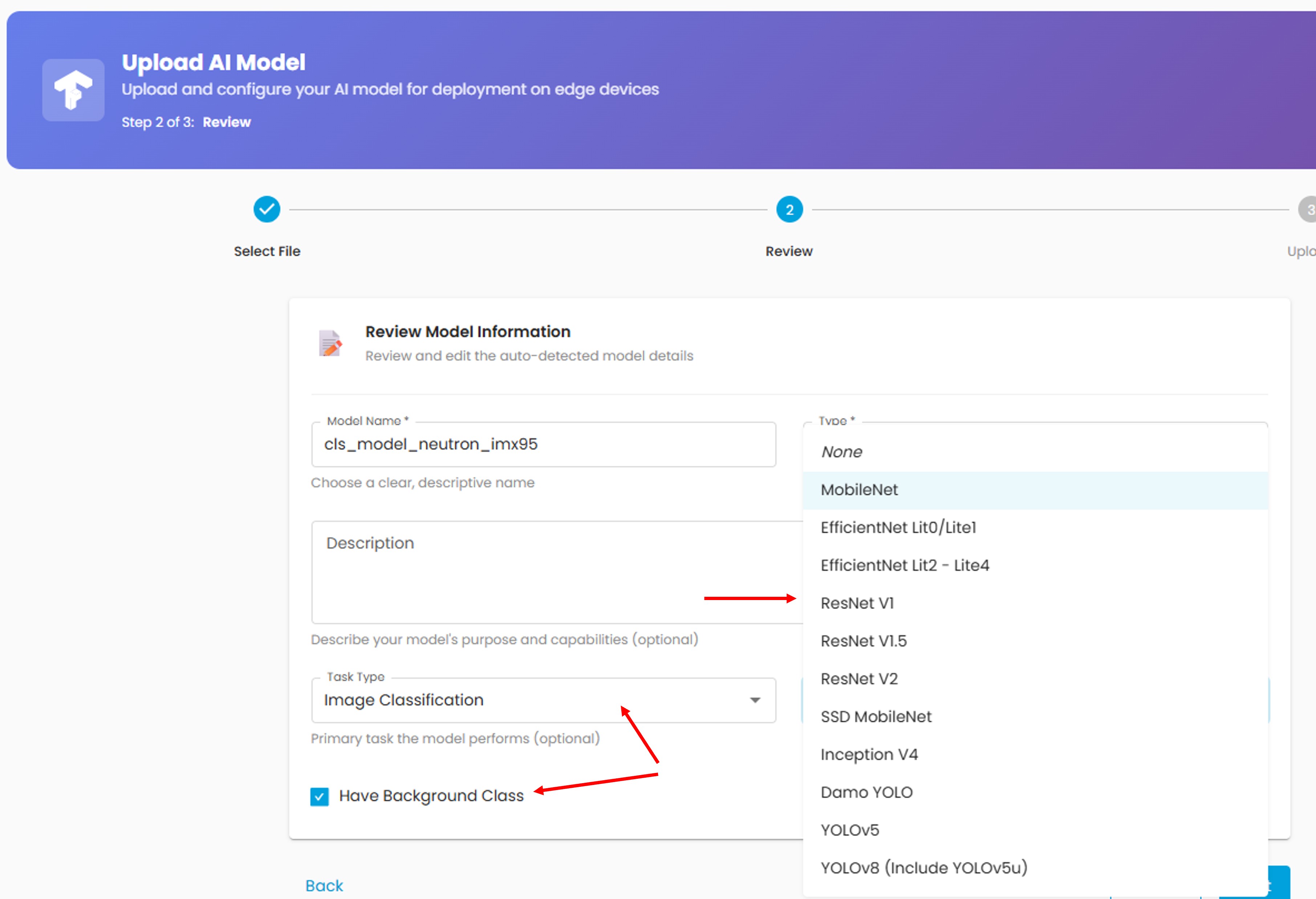
When you upload a model, you can optionally choose Task Type, Architecture, and Have Background Class. The architecture determines how the model input and output are processed, so choose the proper one for your model. Currently, AI Hub doesn’t support customized architecture.
The Have Background Class option is only applicable for classification models. If your model output includes a background class (such as MobileNet models), check this option.
For accuracy benchmarking, eIQ AI Hub compares the inference output with ground truth labels. Uploading a label file is mandatory. In My Models, open the model page and click the Add button next to the label file section.
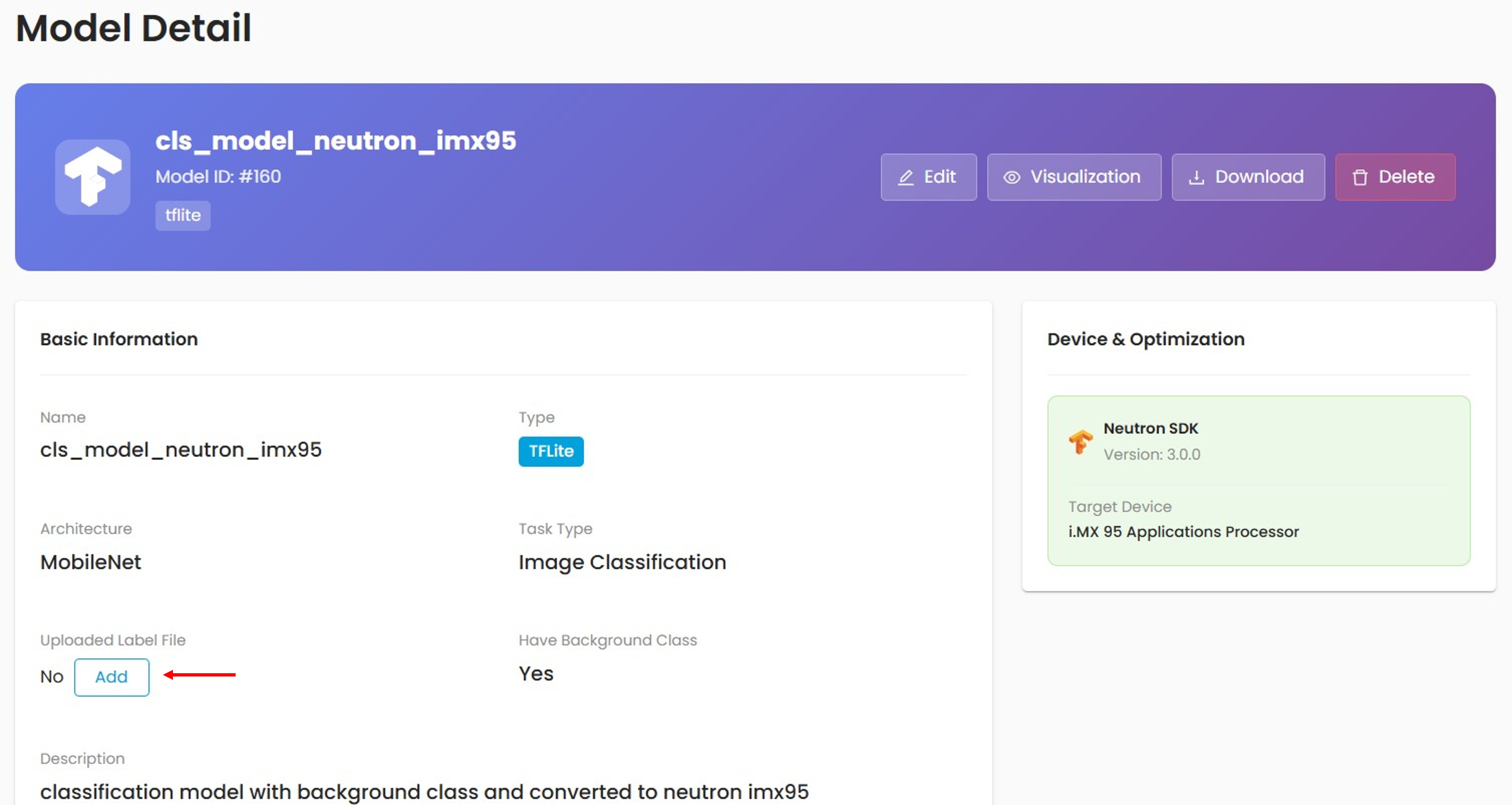
If no label file is uploaded, you can add one.
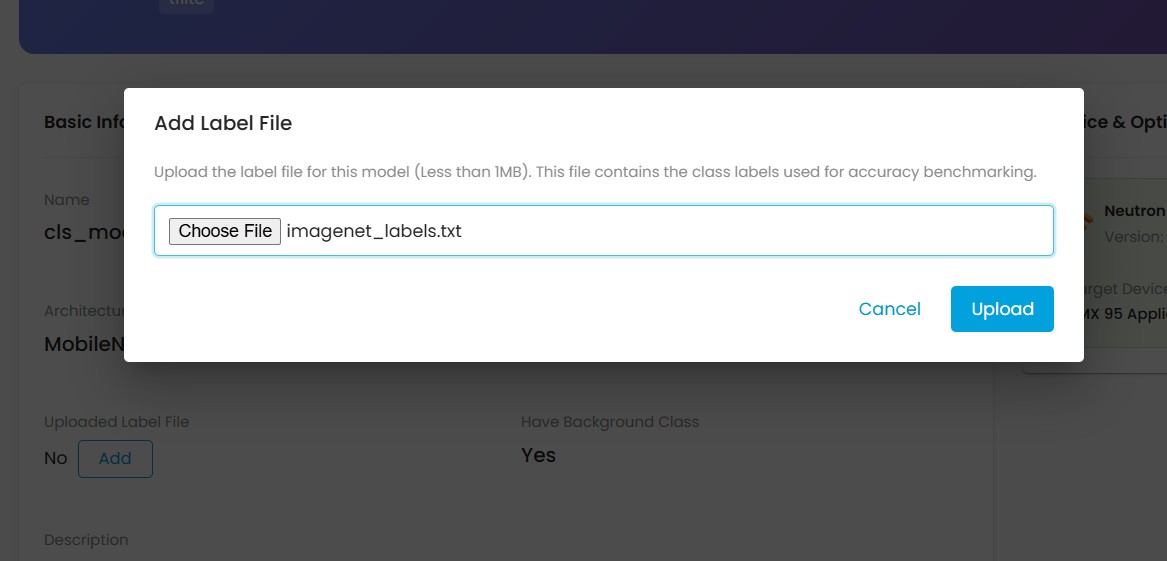
You can also replace an existing label file with a new one.
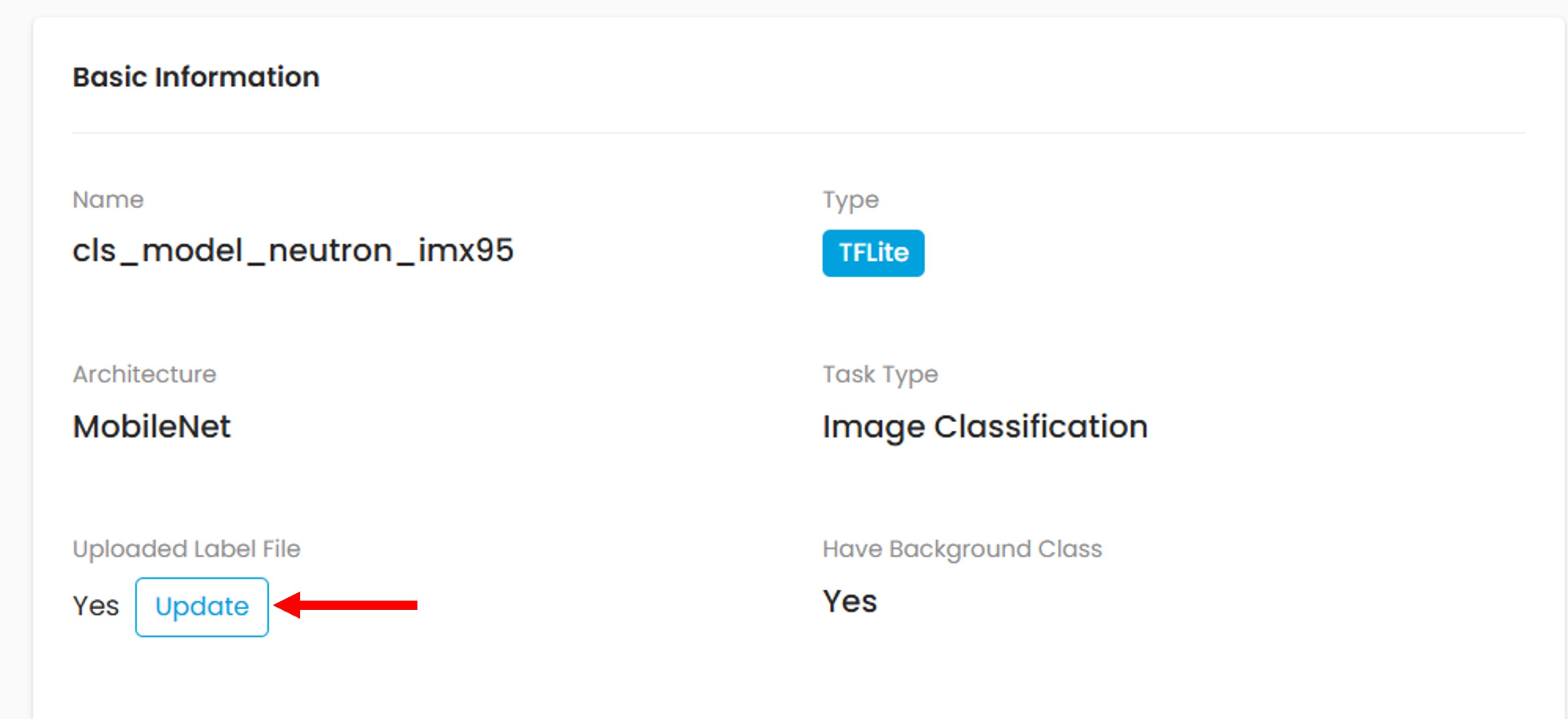
Classification Accuracy
The accuracy benchmarking process is similar to latency benchmarking, except that the task types of the model and dataset must match.
You can limit the number of samples in the Count field. The default is 0, which uses the entire dataset.
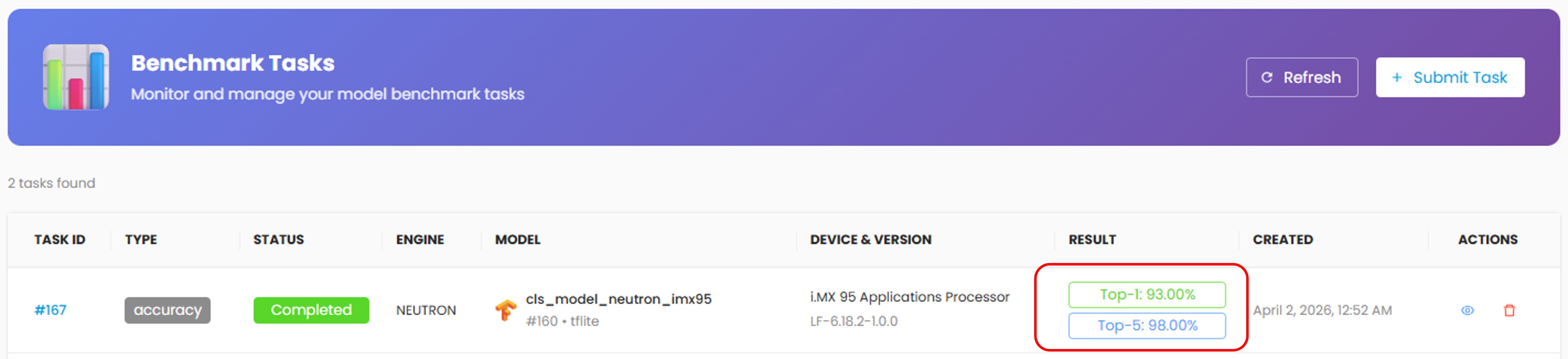
You will see the Top-1 and Top-5 results in the task list once benchmarking completes. Click on the task to see more details.
Object Detection Accuracy
Object detection uses two parameters for Non-Maximum Suppression (NMS):
Score: [0, 1.0]. Predicted objects with scores lower than this value are eliminated.
IoU: [0, 1.0]. Eliminates detected overlapping objects with IoU higher than this value.
The Score and IoU values may affect the accuracy results.
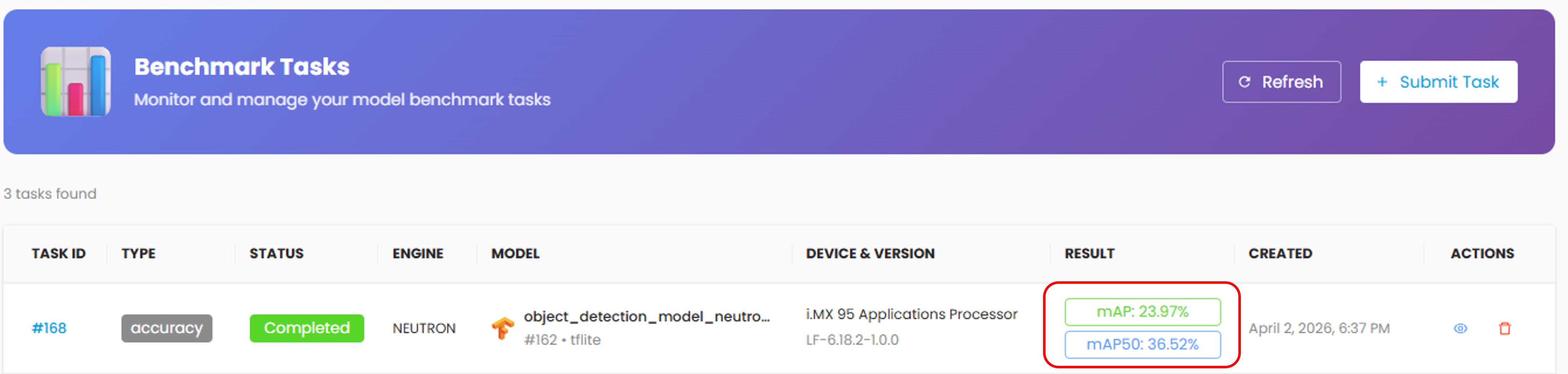
You will see the mAP50 and mAP results in the task list once benchmarking completes. mAP is also known as mAP50-95.