Optimize the Model
With both model and calibration dataset available, you can use the eIQ AI Toolkit Optimize & Convert feature to prepare your model for deployment on NXP hardware.
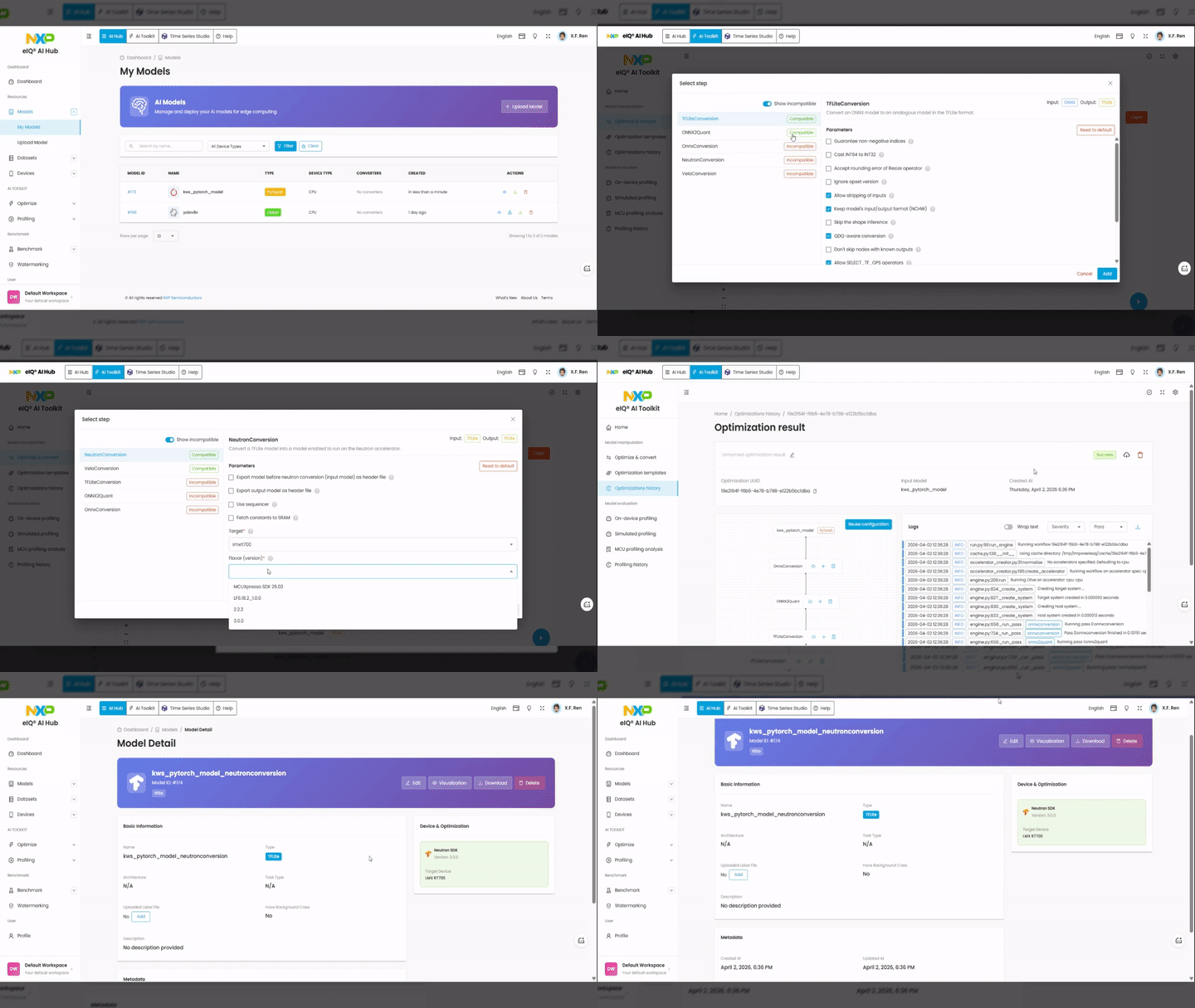
What the AI Toolkit optimize&convert Does
The Optimize and convert tool runs conversion and optimization pipelines on your model:
Applies quantization (e.g., int8)
Performs graph-level modifications
Convert operators to optimized kernels for NXP NPU accelerators (Neutron, Vela)
Reduces latency and memory footprint
Produces deployment-ready model artifacts
Using the Calibration Dataset
The calibration dataset allows the Optimizer to learn representative activation ranges for post-training quantization. Using a high-quality calibration dataset:
Improves accuracy retention
Reduces quantization error
Generates more reliable profiling and benchmarking results
Optimize and Convert a Model
The Optimize & Convert page provides a visual workflow canvas where you build a pipeline by connecting your model to one or more conversion steps.
Steps:
Switch to the AI Toolkit tab in the top navigation bar.
In the left sidebar, under Model manipulation, click Optimize & Convert.
On the workflow canvas, your uploaded model appears as a node. If not, drag your model from the available resources onto the canvas.
Click the
+button on the canvas to open the Select step dialog.Choose a conversion step. The available steps and their compatibility depend on your model format:
NeutronConversion — converts a TFLite model to run on the Neutron accelerator.
VelaConversion — optimizes a TFLite model for NXP Ethos-U NPU.
OnnxConversion — converts a PyTorch model to ONNX format.
TFLiteConversion — converts an ONNX model to TFLite format.
ONNX2Quant — quantizes an ONNX model.
Enable Show incompatible to see all steps, including those not compatible with your current model.
Configure the conversion parameters:
Target — select the target device (e.g.,
imxrt700).Flavor (version) — select the SDK or toolchain version (e.g.,
MCUXpresso SDK 26.03).Optional checkboxes such as Export output model as header file, Use sequencer, or Fetch constants to SRAM, depending on the conversion type.
Click Add to add the step to the pipeline. The step node appears on the canvas, connected to your model node.
Click the Run button (blue play icon) in the bottom-right corner of the canvas to start the pipeline.
A confirmation message appears: “Your pipeline is running…”. You can:
Click Optimizations History to monitor the pipeline status.
Click Run another to start a new pipeline.
When the pipeline completes, a Copying to My models dialog appears. Enter a name for the optimized model (e.g.,
my_model_neutronconversion) and click Copy.The optimized model now appears in your model list under AI Hub. Click it to open the Model Detail page, where you can view model information, visualize the architecture, download the model file, or delete it.
Available Conversion Steps
Step |
Input Format |
Output Format |
Description |
|---|---|---|---|
NeutronConversion |
TFLite |
TFLite |
Convert for Neutron accelerator |
VelaConversion |
TFLite |
TFLite |
Optimize for Ethos-U NPU |
OnnxConversion |
PyTorch |
ONNX |
Convert PyTorch to ONNX |
TFLiteConversion |
ONNX |
TFLite |
Convert ONNX to TFLite |
ONNX2Quant |
ONNX |
ONNX |
Quantize ONNX model |
After optimization, the AI Hub automatically registers all generated artifacts so they can be used in downstream steps such as profiling and benchmarking.
Note
Please refer to AI Toolkit document for detailed information.