Upload Your Dataset
Datasets are essential for model optimization and evaluation in eIQ AI Hub. You can upload two types of datasets:
Calibration dataset — used during post-training quantization to calibrate the model.
Validation dataset — used for benchmarking model accuracy.
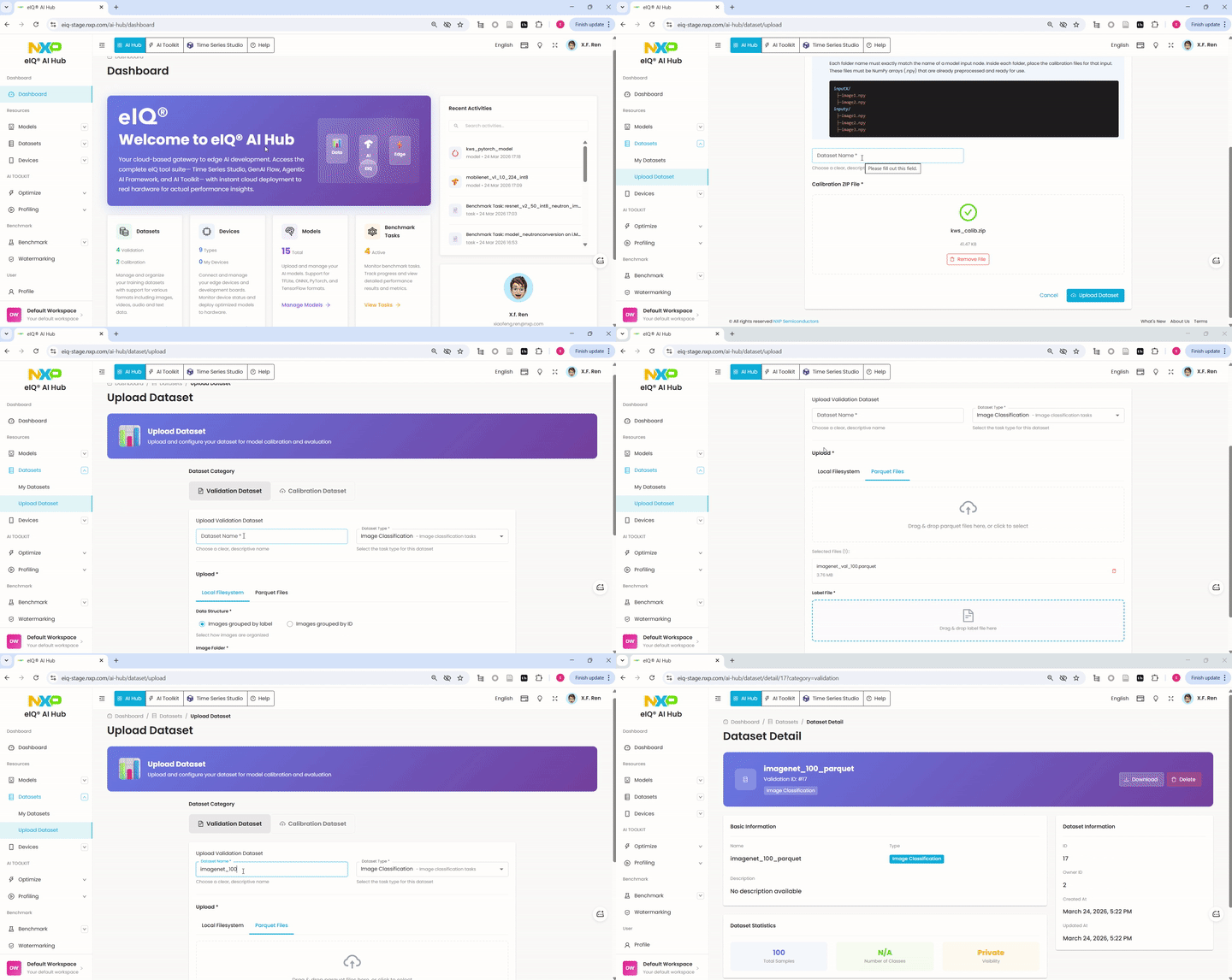
Upload Calibration Dataset
The calibration dataset provides sample data that is used during post-training quantization to determine optimal scaling parameters for each tensor.
Dataset format requirements:
The calibration dataset must be organized into folders corresponding to the model’s input nodes.
Each folder name must exactly match the name of a model input node.
Inside each folder, place the calibration files for that input.
These files must be NumPy arrays (.npy) that are already preprocessed and ready for use.
The expected folder structure is:
inputX/
  - image1.npy
  - image2.npy
inputY/
  - image1.npy
  - image2.npy
  - image3.npy
Package the folders into a single ZIP file before uploading.
Steps:
In the left navigation menu, click Datasets > Upload Dataset.
Select the Calibration Dataset tab at the top of the upload form.
Enter a descriptive Dataset Name (for example,
kws_calib).Drag and drop the calibration ZIP file into the upload area, or click to browse and select the file.
Once the file uploads successfully (a green checkmark appears), click Upload Dataset.
After uploading, you are redirected to the Dataset Detail page where you can review the dataset information, view the included files, and download or delete the dataset.
Upload Validation Dataset
The Validation Dataset in eIQ AI Hub is used to benchmark the accuracy of ML models. AI Hub supports accuracy benchmarking for Image Classification models and Object Detection models. Before accuracy benchmarking, users must create a validation dataset.
Upload Classification Dataset
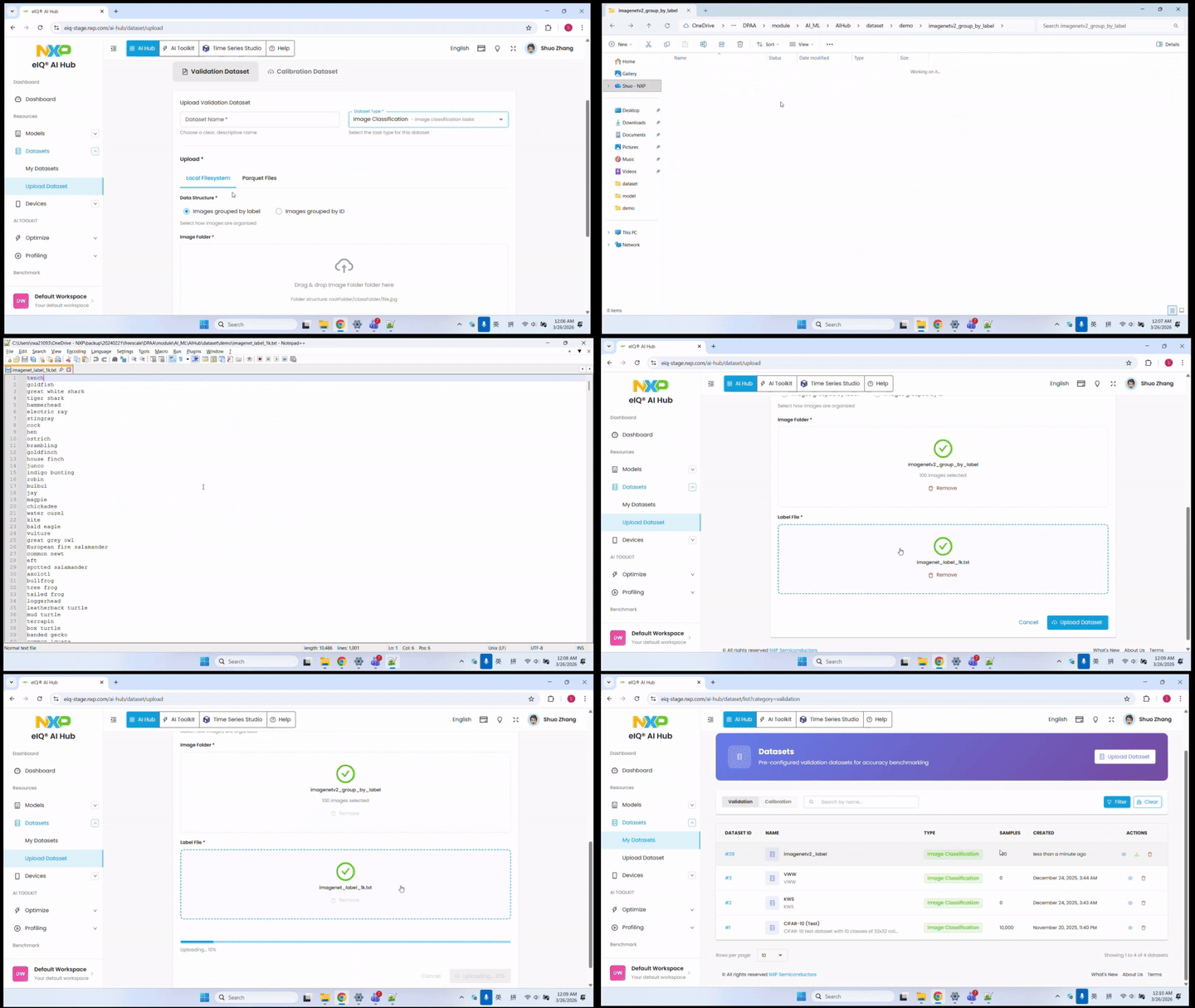
Upload local dataset grouped by label
For classification tasks, datasets can be organized with images grouped by label. This is a common format where images are organized in folders, with each folder representing a class.
The following animation shows the complete upload process:
Step-by-Step Instructions
Navigate to Datasets Page
In the AI Hub navigation menu, click Datasets.
Click Upload Dataset
Select Dataset Type
Choose Image Classification as the task type.
Upload Dataset Files
Select the folder containing your images grouped by label. Each subfolder name will be used as the class label.
Example structure:
dataset/
├── cat/
│   ├── cat_001.jpg
│   ├── cat_002.jpg
│   └── ...
├── dog/
│   ├── dog_001.jpg
│   ├── dog_002.jpg
│   └── ...
└── bird/
    ├── bird_001.jpg
    ├── bird_002.jpg
    └── ...
Upload Label File
For classification datasets, a label file is required to map class names to indices. Upload a text file containing the class names, one per line:
background
cat
dog
bird
...
Fill in Dataset Information
Name: Enter a descriptive name for your dataset
Description: Optional description of the dataset
Submit Upload
Click Submit to start the upload. The progress will be displayed.
Verify Upload
Once uploaded, the dataset appears in My Datasets with number of samples.
Note: A single image file and label file must be no more than 90 MB. This rule applies to all image uploads in AI Hub. The total size of all the files in a dataset must be less than your available storage space. Please make sure you have enough storage space before uploading large datasets. You can check your storage usage in the Account Settings page.
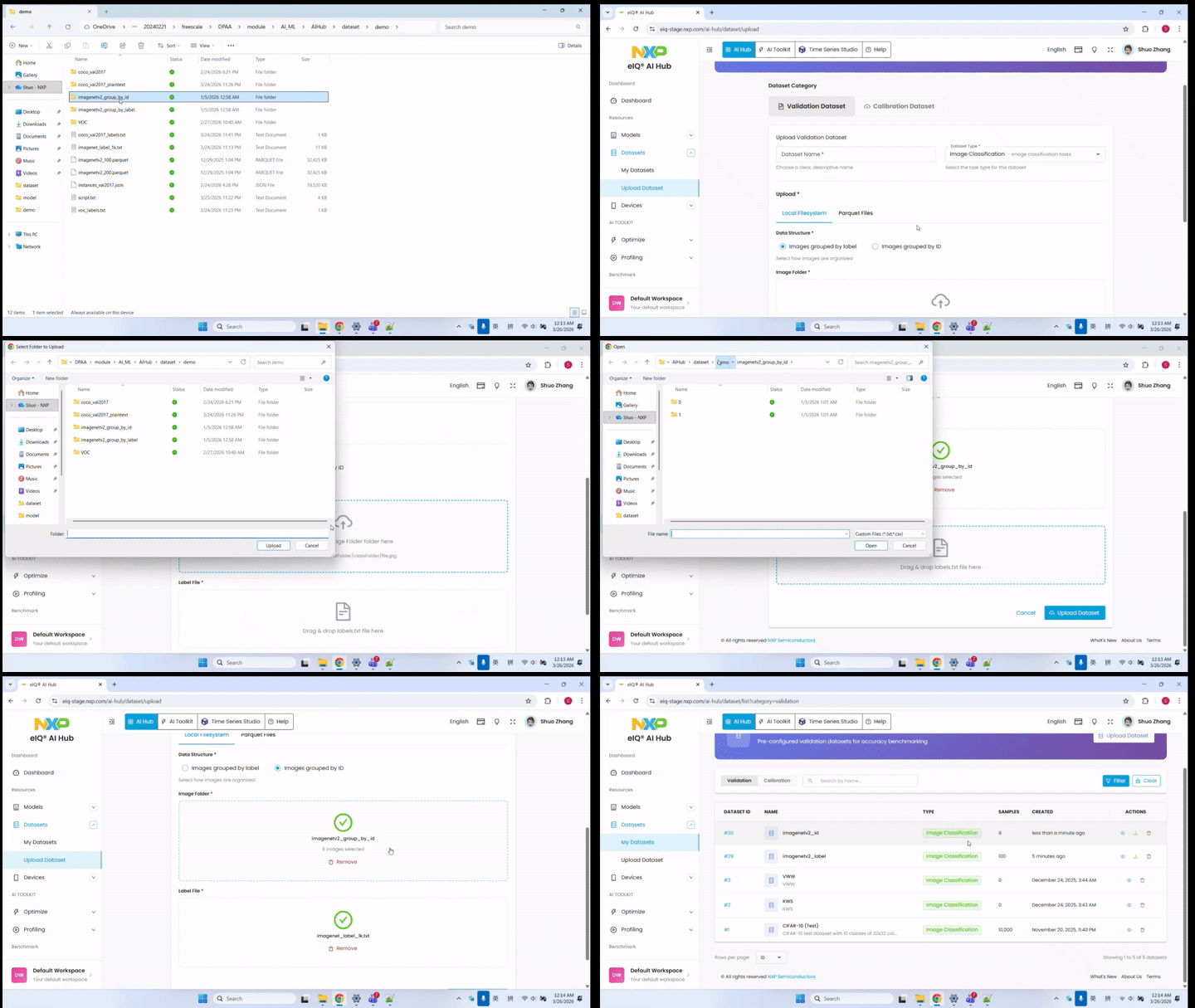
Upload local dataset grouped by index
For classification tasks, datasets can also be organized by class indexes. In this format, images are grouped into folders where each folder name represents a class index. Images of the same category are stored in the same folder.
The following animation shows the complete upload process:
Step-by-Step Instructions
Select Dataset Type
Choose Image Classification as the task type.
Select Data Structure
Choose the Images grouped by ID option for datasets organized by ID.
Upload Folder List
Upload a text file containing the list of folder paths. Each line should contain the path to a folder, where the folder name serves as the ID.
Example structure:
dataset/
├── 0/
│   ├── cat_001.jpg
│   ├── cat_002.jpg
│   └── ...
├── 1/
│   ├── dog_001.jpg
│   ├── dog_002.jpg
│   └── ...
└── 2/
    ├── bird_001.jpg
    ├── bird_002.jpg
    └── ...
In this example, folders “0”, “1”, and “2” are the class indexes.
The remaining steps are the same as those for label-grouped classification datasets
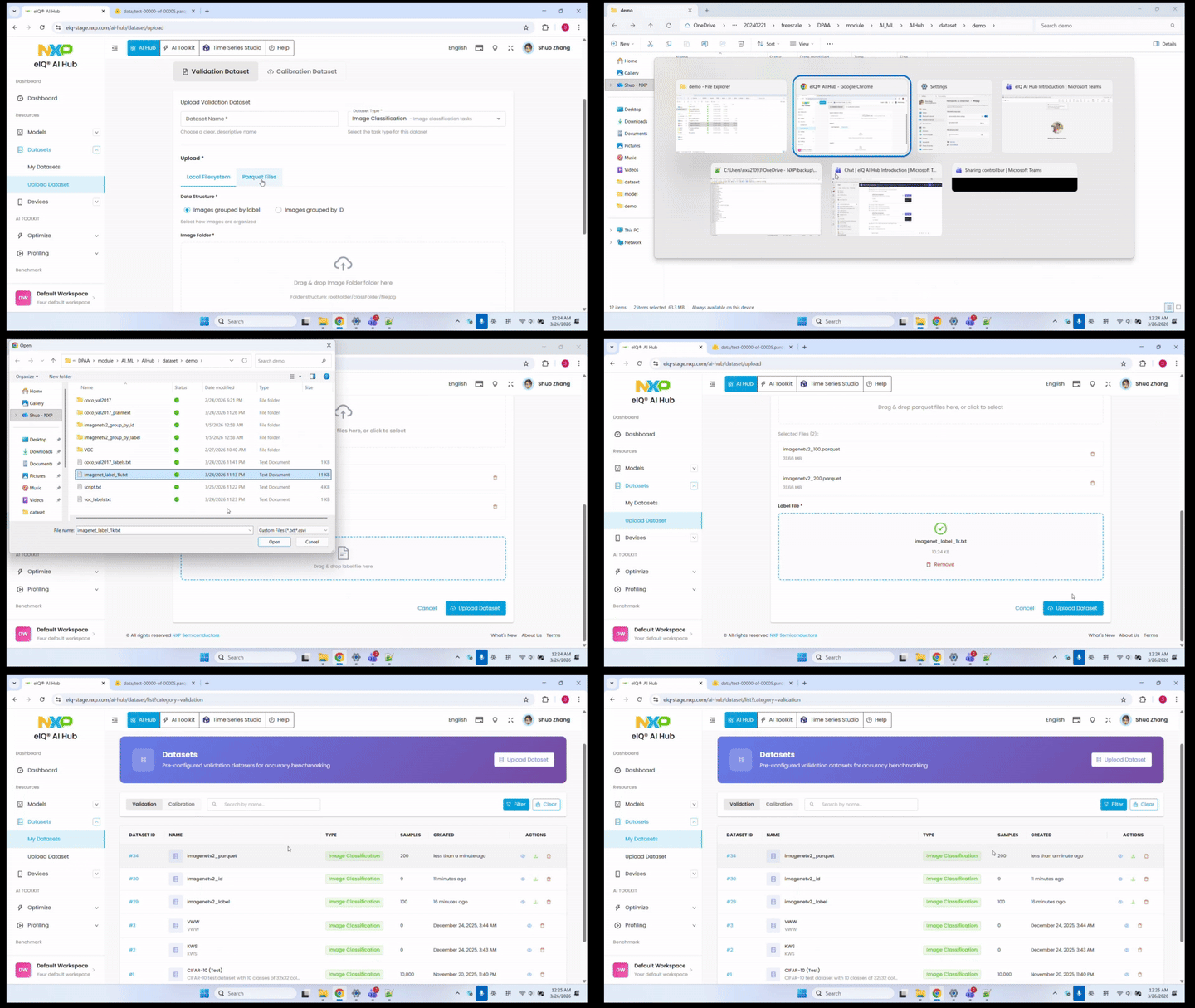
Dataset in parquet format
If you already have a dataset on Huggingface, you can download it in Parquet format then upload it to AI Hub. Unlike image upload, there is no size limit for Parquet file upload. However, the upload will fail if there is not enough storage space in your AI Hub account. Please make sure you have enough storage space before uploading large datasets. You can check your storage usage in the Account Settings page.
The following animation shows the complete upload process:
Step-by-Step Instructions
Select Dataset Type
Choose Image Classification as the task type.
Select Upload Type
Choose the Parquet Files option for datasets in Huggingface Parquet format.
Upload Parquet File
Drag & drop parquet files or click to select files from your local system.
Upload Label File
Even though the dataset on Huggingface may already contain label information, you still need to upload a label file to ensure compatibility.
Fill in Dataset Information
Name: Enter a descriptive name for your dataset
Description: Optional description of the dataset
Submit Upload
Click Submit to start the upload. The progress will be displayed.
Verify Upload
Once uploaded, the dataset appears in your Datasets list with the number of samples.
Upload Object Detection Dataset
COCO Format Dataset
For object detection tasks, AI Hub supports the COCO (Common Objects in Context) dataset format. COCO is a widely used format for object detection, segmentation, and captioning tasks.
The following animation shows the complete upload process:
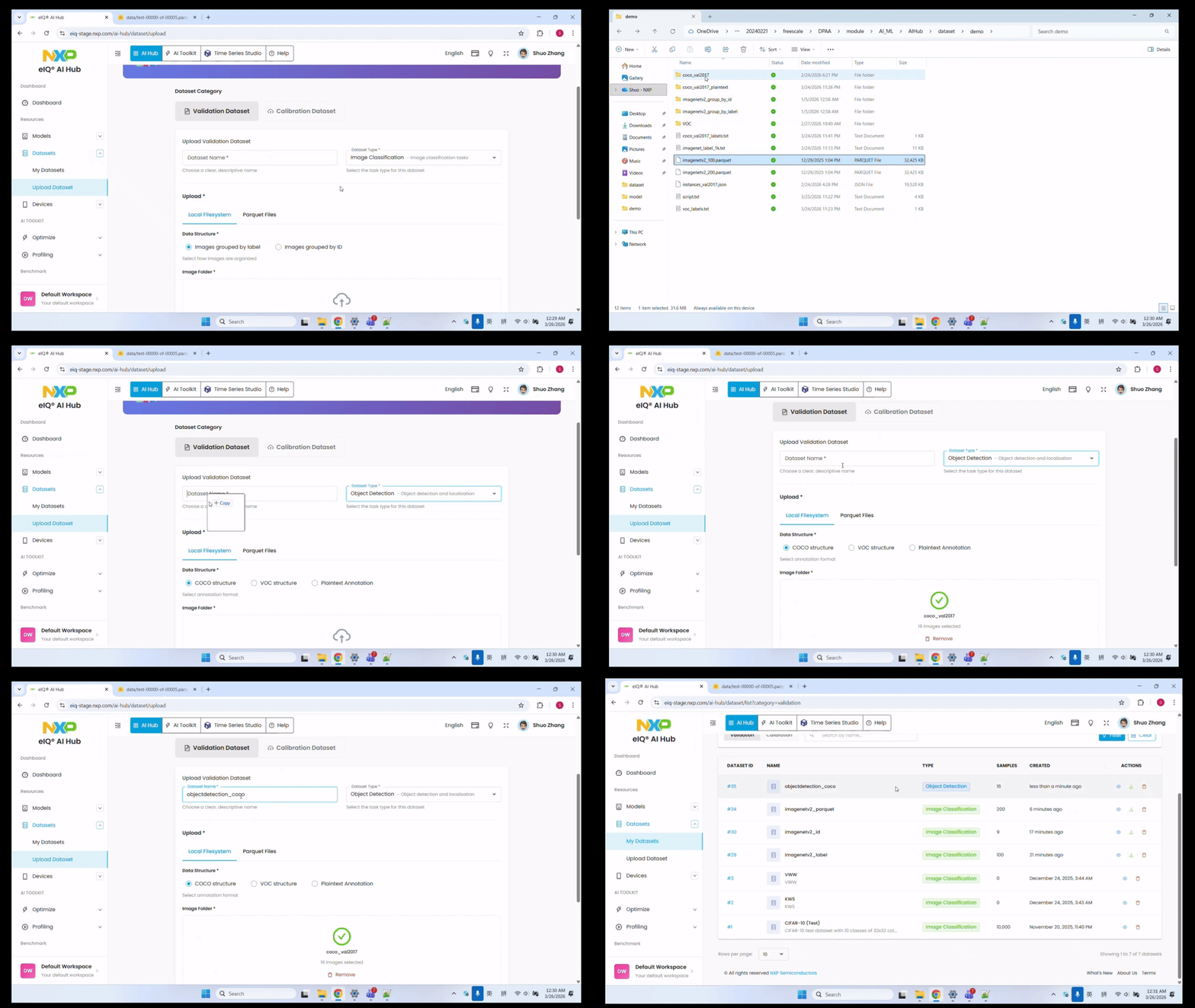
Step-by-Step Instructions
Select Dataset Type
Choose Object Detection as the task type.
Select Data Structure
Choose the COCO Structure option for datasets in COCO format.
Upload Image Files
Select the folder containing your images. All the images should be referenced in the COCO annotation file.
Upload COCO Annotation File
Upload the COCO format JSON annotation file. The annotation file should contain the dataset information, including images, annotations, and categories in COCO format.
Example COCO structure:
{
  "images": [
    {
      "id": 1,
      "file_name": "image_001.jpg",
      "width": 800,
      "height": 600
    },
    ...
  ],
  "annotations": [
    {
      "id": 1,
      "image_id": 1,
      "category_id": 1,
      "bbox": [x, y, width, height],
      "area": area,
      "iscrowd": 0
    },
    ...
  ],
  "categories": [
    {
      "id": 1,
      "name": "person"
    },
    ...
  ]
}
Fill in Dataset Information
Name: Enter a descriptive name for your dataset
Description: Optional description of the dataset
Submit Upload
Click Submit to start the upload. The progress will be displayed.
Verify Upload
Once uploaded, the dataset appears in your Datasets list with the number of samples.
VOC Format Dataset
For object detection tasks, AI Hub also supports the VOC (Visual Object Classes) dataset format. VOC is a popular dataset format originally developed for the PASCAL VOC challenge.
The following animation shows the complete upload process:
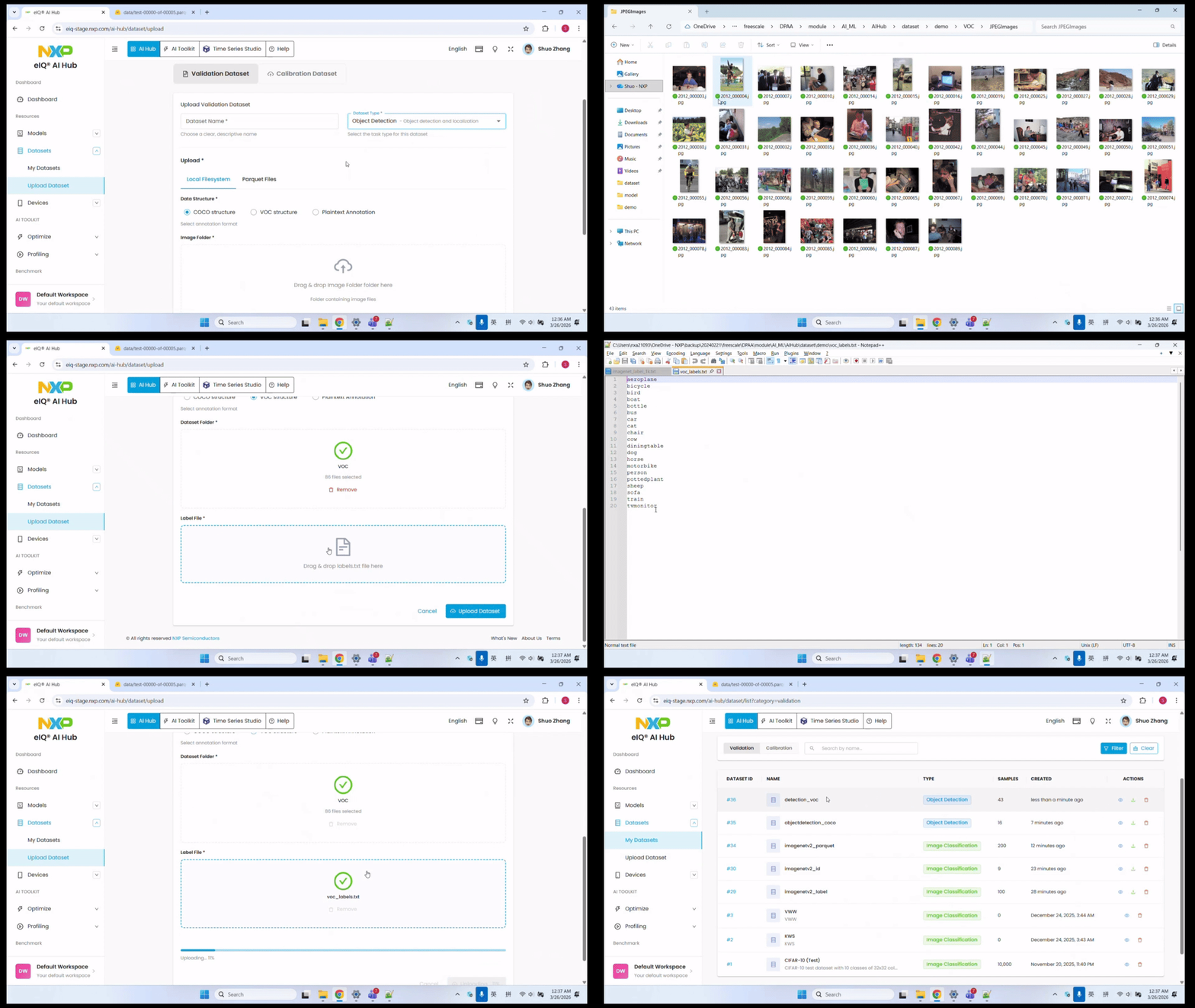
Step-by-Step Instructions
Select Dataset Type
Choose Object Detection as the task type.
Select Data Structure
Choose the VOC structure option for datasets in VOC format.
Upload Dataset Folder
Select the folder containing your VOC dataset. The folder should contain the JPEGImages, Annotations subfolders organized in VOC structure. The image folder name is ‘JPEGImages’ in VOC rules, but AI Hub supports .jpg, .jpeg, .bmp and .png format images. Each image should have a corresponding XML file in Annotations subfolder with the same name containing the annotation information.
Example VOC structure:
dataset/
├── JPEGImages/
│   ├── image_001.jpg
│   ├── image_002.jpg
│   └── ...
├── Annotations/
    ├── image_001.xml
    ├── image_002.xml
    └── ...
Example XML annotation format:
<annotation>
  <folder>JPEGImages</folder>
  <filename>image_001.jpg</filename>
  <size>
    <width>800</width>
    <height>600</height>
    <depth>3</depth>
  </size>
  <object>
    <name>person</name>
    <bndbox>
      <xmin>100</xmin>
      <ymin>150</ymin>
      <xmax>300</xmax>
      <ymax>400</ymax>
    </bndbox>
  </object>
</annotation>
Upload Label File
For object detection datasets in VOC format, a label file is required to map class names to indices. Upload a text file containing the class names, one per line:
aeroplane
bicycle
bird
boat
...
Fill in Dataset Information
Name: Enter a descriptive name for your dataset
Description: Optional description of the dataset
Submit Upload
Click Submit to start the upload. The progress will be displayed.
Verify Upload
Once uploaded, the dataset appears in your Datasets list with the number of samples.
Plaintext Annotation Dataset
The Plaintext annotation format is similar to VOC format but uses a simpler text-based annotation format.
The following animation shows the complete upload process:
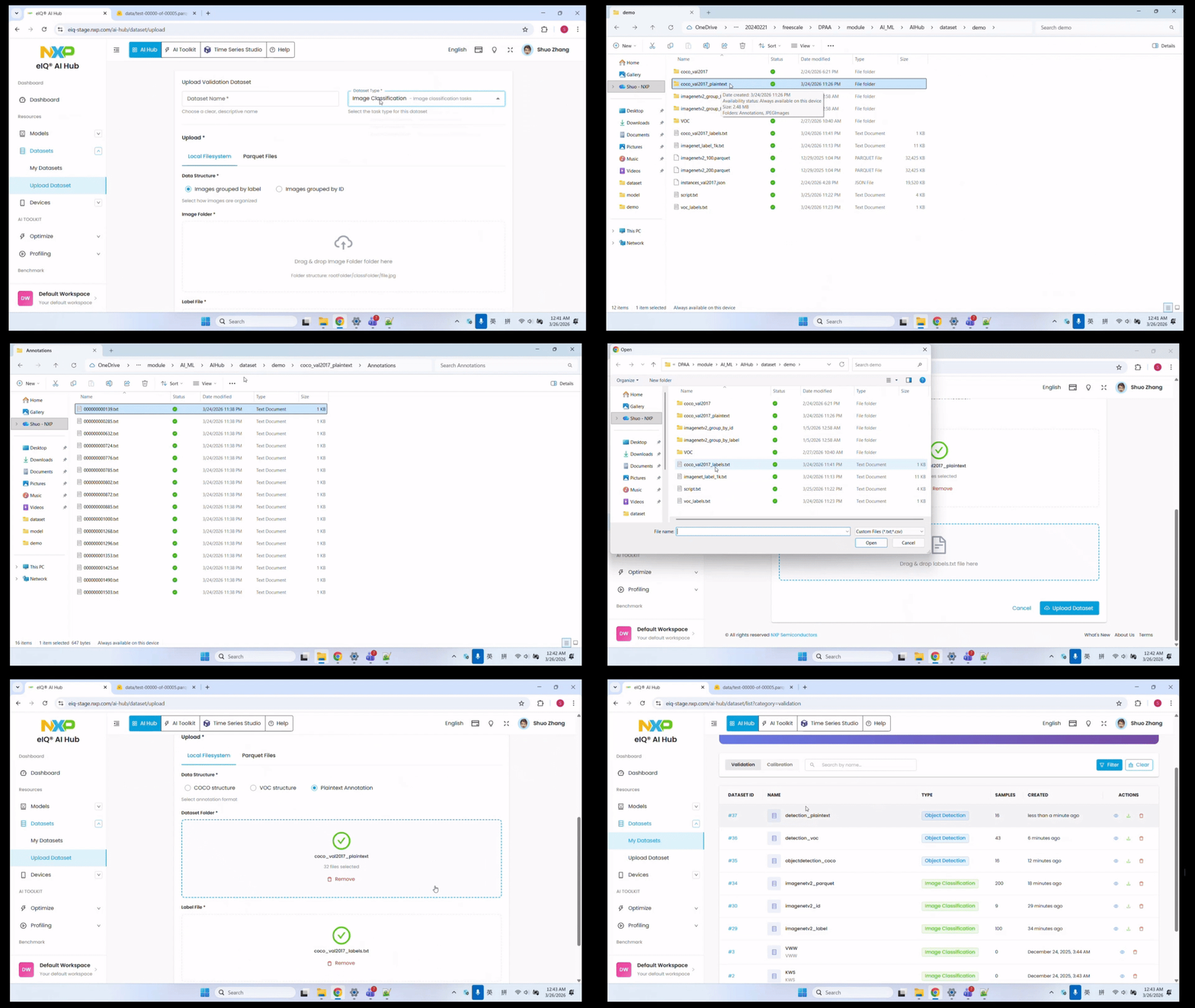
Step-by-Step Instructions
Select Dataset Type
Choose Object Detection as the task type.
Select Data Structure
Choose the Plaintext Annotation option for datasets in plaintext format.
Upload Annotation Files
Upload the plaintext annotation files. Each image should have a corresponding text file with the same name containing the bounding box annotations.
Upload Dataset Folder
Select the folder containing files in the following structure.
Example plaintext structure:
dataset/
├── images/
│   ├── image_001.jpg
│   ├── image_002.jpg
│   └── ...
└── annotations/
    ├── image_001.txt
    ├── image_002.txt
    └── ...
Example plaintext annotation format:
<object-class> <x_center> <y_center> <width> <height>
Where: -
<object-class>: Class name (person, chair, book, …) -<x_center>: Center X coordinate -<y_center>: Center Y coordinate -<width>: Bounding box width -<height>: Bounding box heightExample annotation file:
chair 358.98 218.05 56.0 102.83
person 412.8 157.61 53.05 138.01
book 604.77 305.89 14.34 45.71
The remaining steps are the same as those for VOC format object detection datasets.