Data Operation
The Data Operation module is a convenient and practical tool in TSS that bridges the gap between unstructured tabular data and the standardized signal formats required for TSS projects. Unlike images, time series data comes from a wide range of sources and exists in various forms. You may work with data from ad hoc sources, such as lab equipment and legacy systems that lack consistent formatting, making TSS import challenging for machine learning tasks. This tool empowers users to preprocess, transform, and validate heterogeneous time-series data into compliant input files for TSS workflows.
Dataset
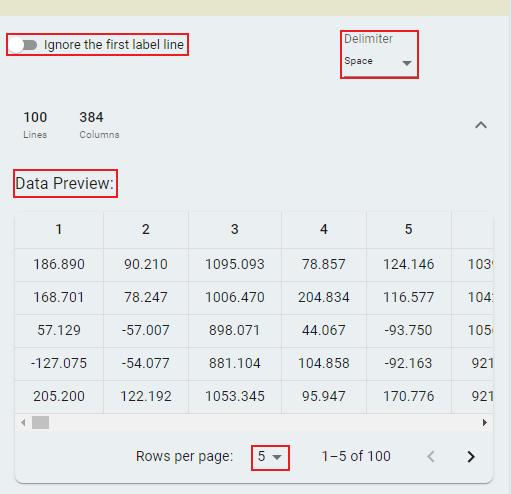
The Dataset section enables you to import tabular data files (in TXT or CSV format) for further processing. You can load single or multiple files, with validation rules ensuring data consistency. To select files from the local system, click the Import Files button. Multiple files can be imported simultaneously.

To configure file parsing settings, click Ignore the first label line to skip the first line (header) if the table contains column headers. To reload files, manually select the appropriate Delimiter.
Operation
The Operation section allows users to apply various data transformations to the imported dataset. Most operations require parameter configuration to achieve the desired results.
Remove Lines
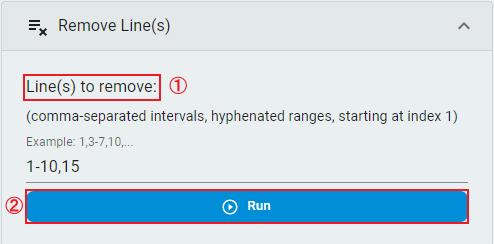
Remove lines that users consider unnecessary.
Input the
Line(s) to removeaccording to the specified format.Click the
Runbutton.
Remove Columns
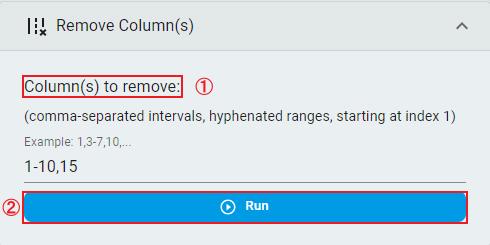
Remove columns that users consider unnecessary.
Input the
Column(s) to removeaccording to the specified format.Click the
Runbutton.
Remove Channels
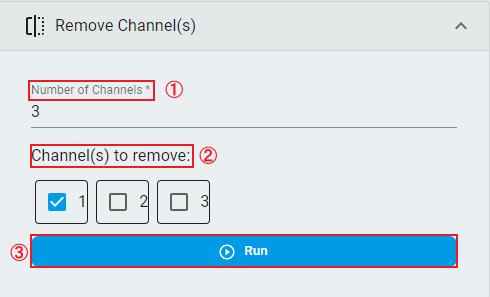
Remove channels that users consider unnecessary. Available only for multichannel data. Users can get recommendations by applying the data to Data Intelligence for smart analysis. The Channel Correlation and Channel Importance indices can help identify redundant channels.
Set the
Number of Channels.Select the
Channel(s) to remove.Click the
Runbutton.
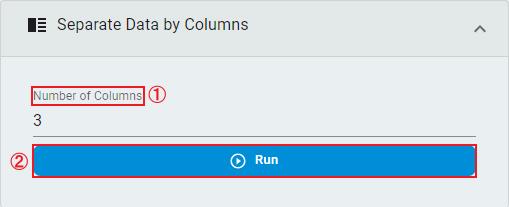
Separate Data by Columns
Rearrange the data according to the number of columns specified by users.
Set the
Number of Columns.Click the
Runbutton.
Transpose Data
Transpose the dataset so that rows become columns and columns become rows. Simply click the Run button.
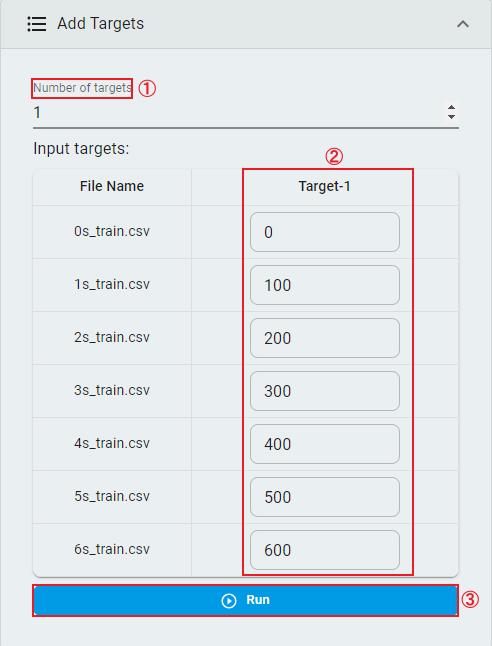
Add Targets
Add targets values to classification datasets so that classification datasets can be converted into regression datasets.
Set the
Number of targets.Input the targets values for each file.
Click the
Runbutton.
Shuffle Data
Shuffle the dataset by lines. Simply click the Run button.
Wash Data
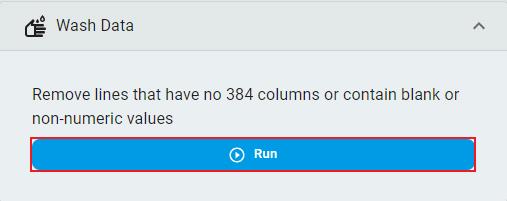
Remove unclean lines from the dataset. “Unclean” means that the line contains non-numeric elements, or the number of columns in the line is inconsistent with other lines. Simply click the Run button.
Generate Samples
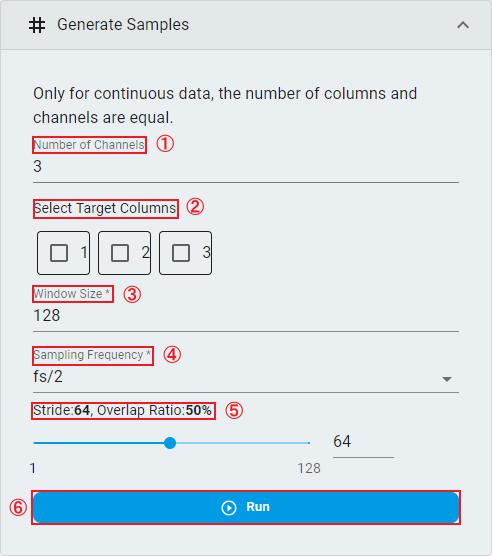
Create segmented datasets from continuous data for importing into TSS machine learning projects. You can use Data Intelligence to perform smart analysis on continuous data in advance and obtain optimal segmentation parameters.
Set the
Number of Channels. Note: Continuous data requires the number of channels to match the number of columns.Select the
Target Columns. Note: This option is available when users wish to use a channel’s output as the prediction target for regression tasks. It is not required for classification tasks.Set the
Window Size.Set the
Sampling Frequency. This refers to the frequency division factor of the original sampling frequency.Set the
Strideand theOverlap Ratio.Click the
Runbutton.
Down Sampling
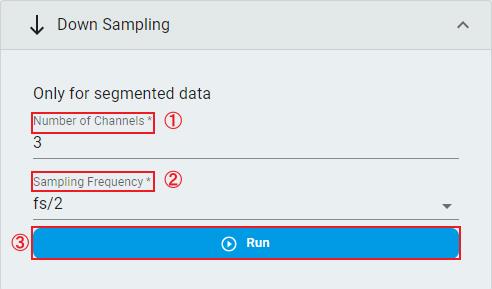
Downsample the segmented dataset. Since the window size of segmented data is fixed, the window size of the data decreases when downsampling.
Set the
Number of Channels.Set the
Sampling Frequency.Click the
Runbutton.
Split Dataset
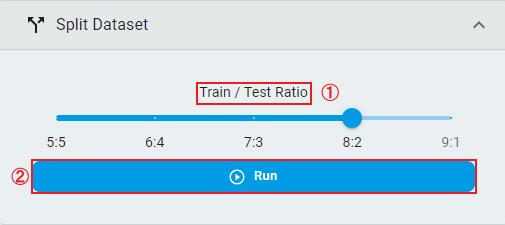
Split the dataset into training and test sets by lines.
Select the
Train/Test Ratio.Click the
Runbutton.
Concatenate Files
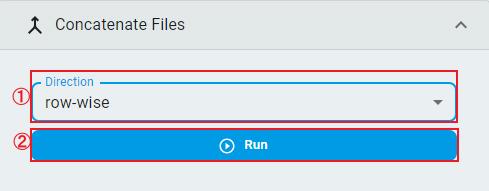
Merge multiple files vertically (row-wise) or horizontally (column-wise).
Choose concatenation
Direction.Click the
Runbutton.
Result
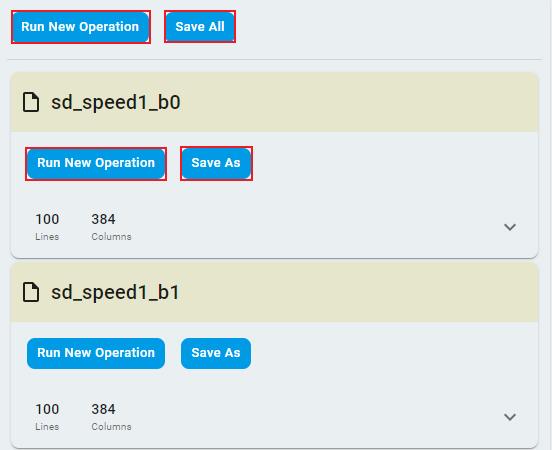
The Result section allows users to choose to save the processed files or perform new operations on these files. For each individual file, the Run New Operation button imports the file to the Dataset section, while the Save As button allows users to save the processed file to the local system. For multiple files, the Run New Operation button imports all files to the Dataset section, and the Save All button packages the processed files into a zip file and saves it.
Conclusion
The Data Operation module provides a streamlined workflow for preprocessing and transforming raw tabular data into TSS-compatible signal files. The interface is divided into three key sections:
Dataset: Enables flexible file (TXT/CSV) importing with configurable parsing settings (delimiters, headers).
Operation: Provides various operations that can perform different transformations on different types of tabular data, with each operation being simple and easy to understand.
Result: Enables users to choose whether to run new operations or save files after processing.
The intuitive design of this tool helps both novices and experienced analysts quickly prepare optimal time-series datasets for their projects.