Projects
The Projects page enables you to configure specific settings for your projects. The settings are slightly different for different tasks. Also, the AutoML projects are supported across all tasks, while BYOM projects are currently available only for n-class classification and regression tasks. The following sections provide the steps to configure settings for anomaly detection, classification, and regression.
Anomaly Detection
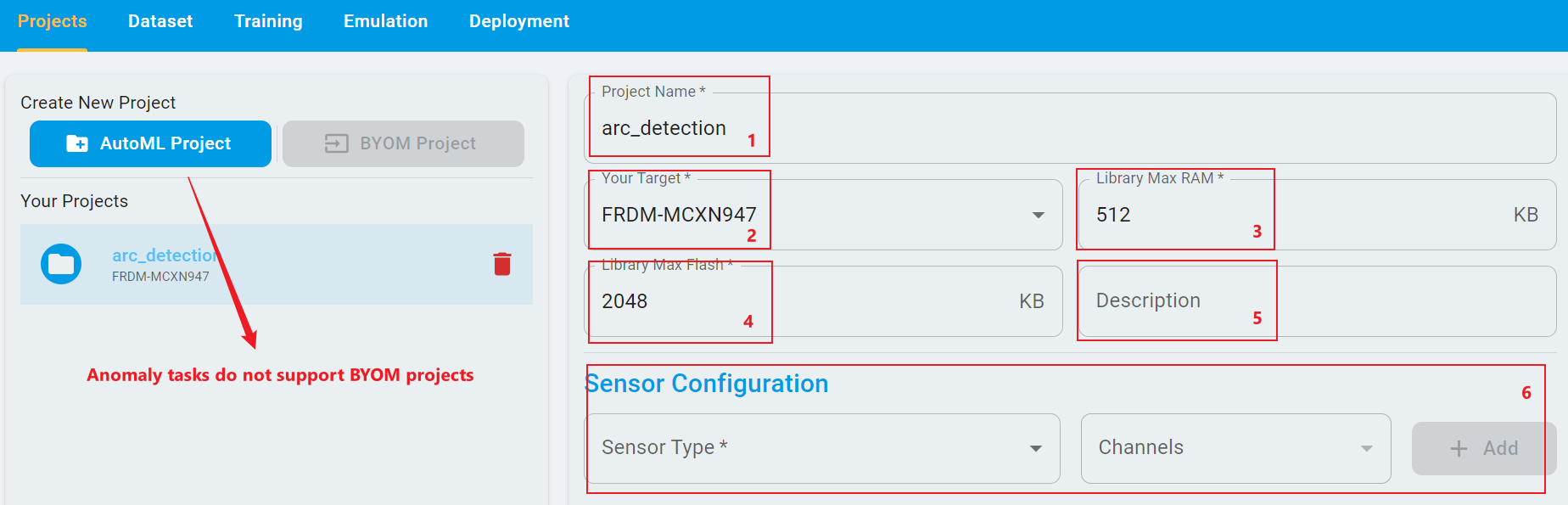
On the Projects page of Anomaly Detection, there are six settings to configure. These settings include Project Name, Your Target, Library Max RAM, Library Max Flash, Description, Sensor Configuration. The settings appear on the click of the Create New Project button.
In Project Name, users must assign a unique name of their project. If the name is the same as an existed project name, users are unable to create a project.
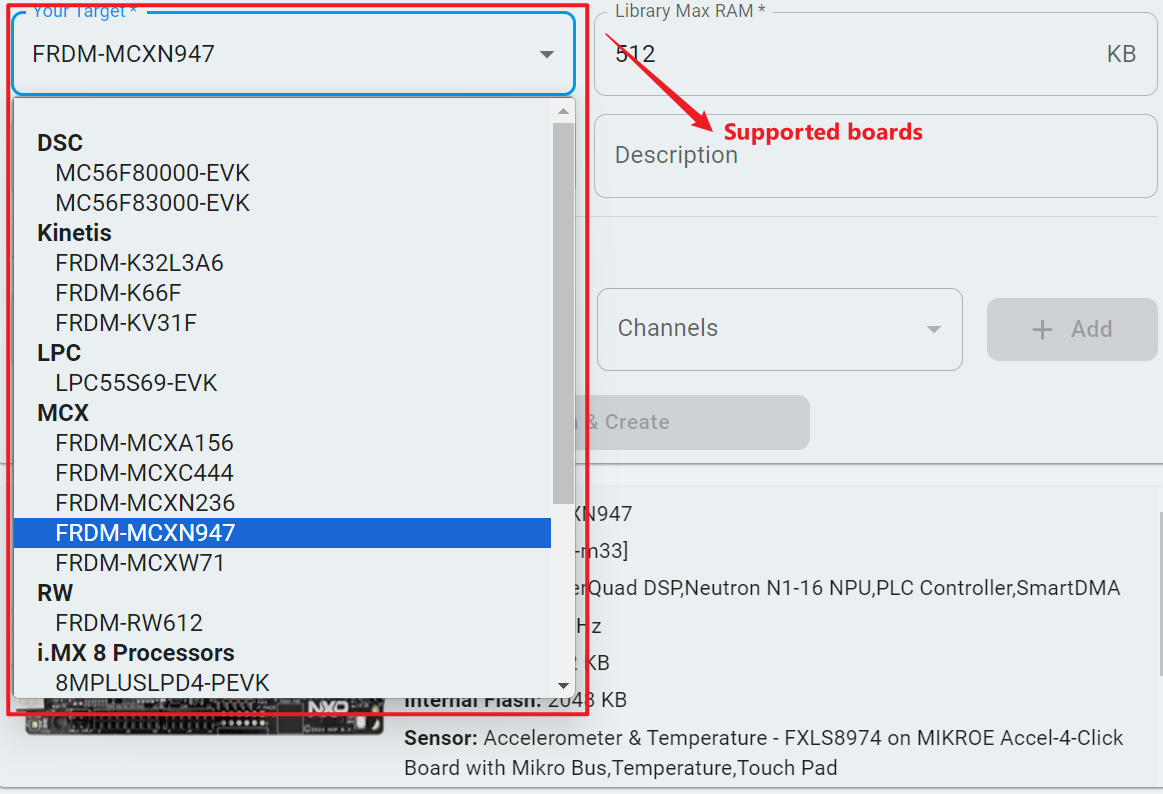
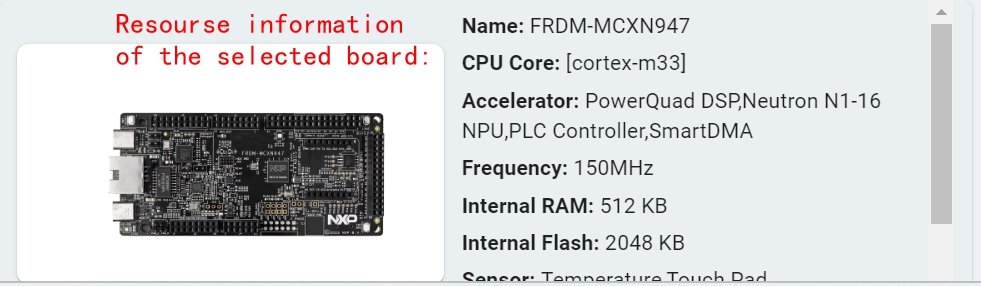
In Your Target, you can select the board on which you want to deploy the trained model. The supported boards are all included in the drop-down list in the figure shown above. You could also view the resource information of selected boards, such as the CPU core frequency.
After the target board selection, Library Max RAM and Library MAX Flash are automatically set to the default values of the selected board. For example, the Library Max RAM and the Library Max Flash are set to 512 kB and 2048 kB when the target board is FRDM-MCXN9XX. Moreover, you can also customize the values of the Library Max RAM and the Library Max Flash. Larger values indicate a larger search space in the training stage, and intend to achieve higher accuracy in the target task. Smaller values generate resource-friendly models, which have small RAM/Flash size. Also, Library Max RAM and the Library Max Flash are not constrained when the set as 0.
In Description, you can provide some explanations or leave it blank.
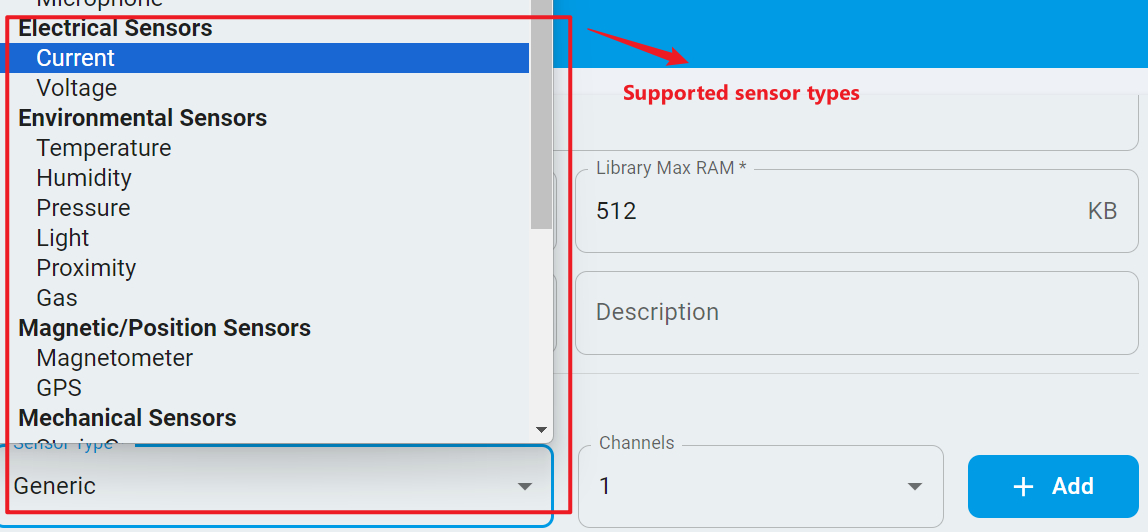
In Sensor Configuration, you need to set sensor types and the number of channels of the input signal. Once you configure and save, you cannot change this parameter in a project. For example, in the Sample App Arc Detection of anomaly detection, the input signal consists of a channel of current signal. Therefore, the sensor type of Current is selected from the drop-down list for channel 1. If the sensor type of the signal is not known, you can choose Generic from the drop-down list.
After configuring all these settings, click the Confirm & Create button to proceed the following steps.
n-Class Classification
For n-calss classification tasks, users can create either a AutoML project or a BYOM project by clicking the corresponding button: AutoML Project or BYOM Project. An AutoML Project enables users to experiment with various combinations of signal processing pipelines and machine learning models. In contrast, a BYOM project allows users to bring their own pretrained deep learning models, eliminating the need to train models from scratch.
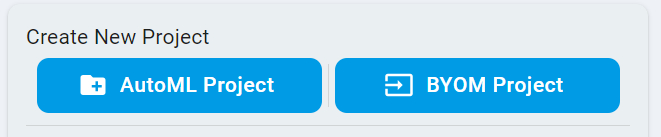
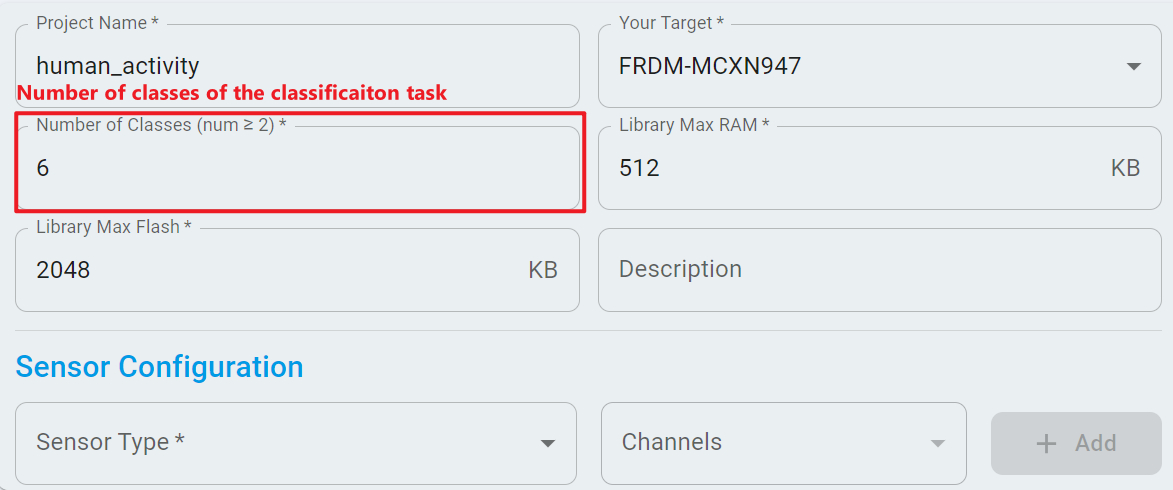
After clicking the button of AutoML Project or BYOM Project, users have seven settings to configure for the desired project. Six out of seven settings are similar to the anomaly detection settings. However, you must configure the Number of Classes for classification projects. For example, in the Sample App Human Activity Recognition of classification, the project searches a model to distinguish six activities. The activities are downstairs, upstairs, walking, jogging, sitting, and standing. Therefore, for this project, the value of Number of Classes is set to 6. Once you configure and save, you cannot change this parameter in a project.
Also, the values of Library Max RAM and Library Max Flash do not take effect on BYOM projects. The values are provided solely as reference to help ensure your model fitted within memory constraints during deployment.
1-Class Classification
Similar to multi-class classification, 1-class classification projects can be created as AutoML projects. However, 1-class classification focuses on detecting anomalies or outliers within a single class of data. In this scenario, no Number of Classes parameter is required, the class number is default to 1.
Regression
For regression tasks, users can also create either a AutoML project or a BYOM project by clicking the button of AutoML Project or BYOM Project.
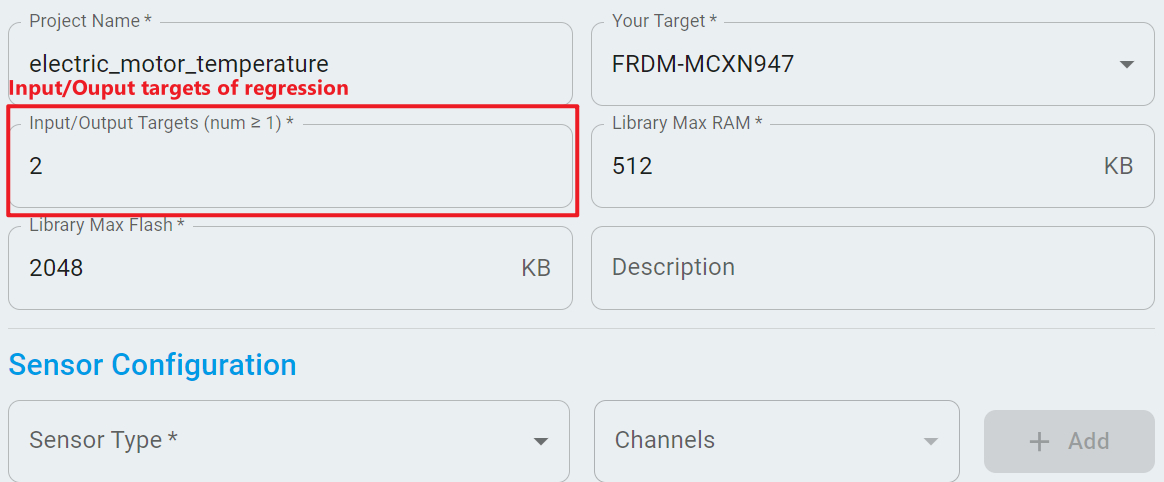
After clicking the button of AutoML Project or BYOM Project, there are seven settings to configure on the Projects page of regression. Six out of seven settings are similar to the anomaly detection or classification settings. However, you must configure the Input/Output Targets for regression projects. The Input/Output Targets indicates the number of targets of a regression model. For example, in the Sample App Electric Motor Temperature of regression, the project predicts the temperature and the torque of the motor. Therefore, the Input/Output Targets is set to 2. Similar to the Number of Classes, once you configure and save, you cannot change this parameter.
Similar to classification tasks, the values of Library Max RAM and Library Max Flash do not take effect on the BYOM project. These values are provided solely as reference to help ensure your model fitted within memory constraints during deployment.